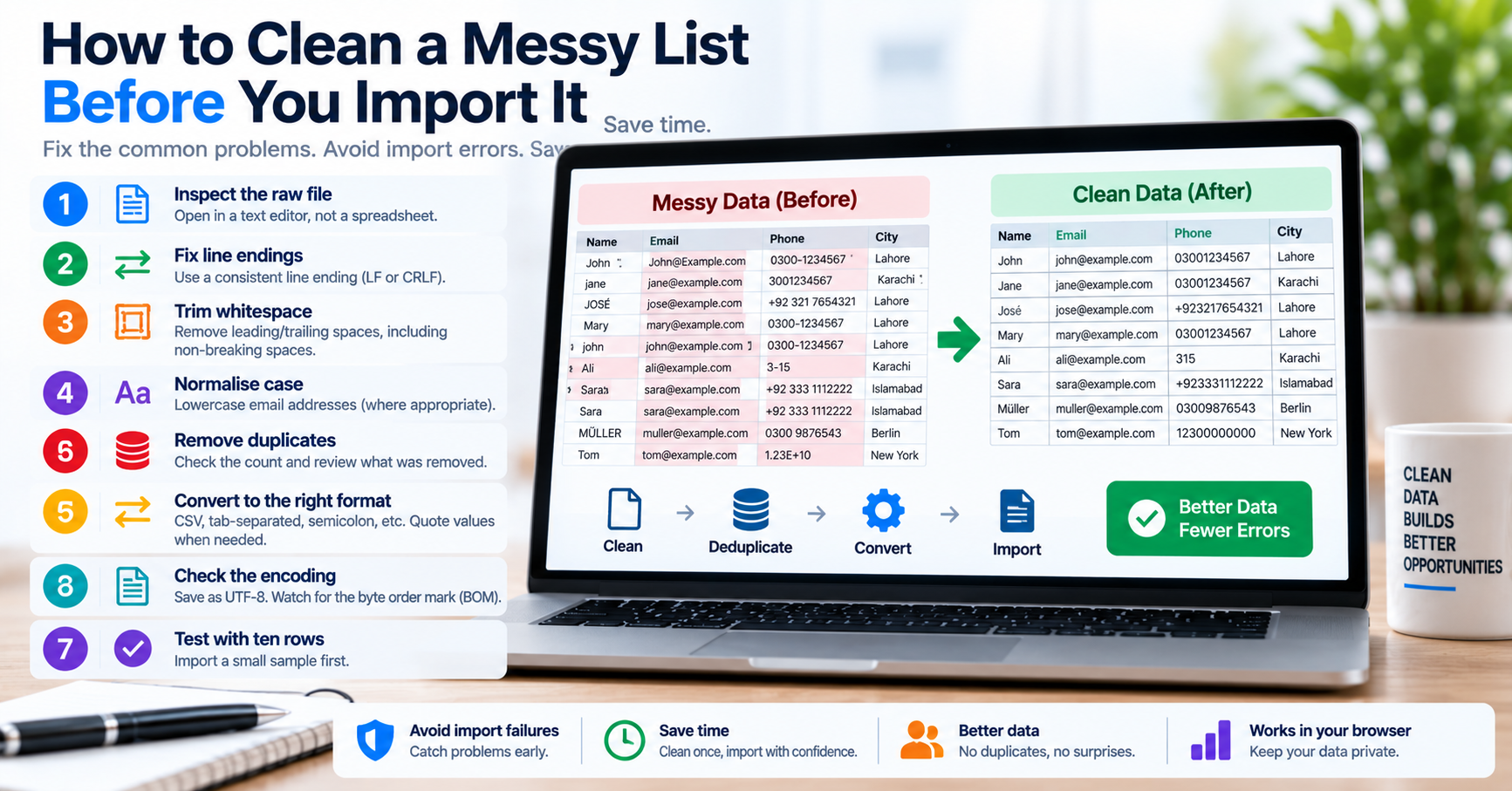
Every developer, database administrator, and digital marketer has faced the dreaded "dirty list" scenario. A client sends a customer database exported from an obsolete CRM. A marketing manager hands you three separate spreadsheets containing event leads. You export five thousand server access logs to analyze suspicious IP addresses. When you open the file, you find an operational nightmare: duplicate records, mixed Windows and Unix line breaks, invisible non-breaking spaces, trailing whitespace, and accidental double commas.
If you attempt to import that raw, un-sanitized list directly into an SQL database or email marketing tool (like Mailchimp or HubSpot), the consequences are severe: database migrations crash halfway through with Duplicate entry for key 'PRIMARY', marketing budgets are wasted sending duplicate messages to the same customer, and reporting dashboards become hopelessly skewed. Here is a definitive, 5-stage data hygiene pipeline to clean any messy list in under five minutes.
The 5-Stage Data Hygiene Pipeline
| Pipeline Stage | Target Defect | Typical Damage If Ignored | Automated Solution |
|---|---|---|---|
| 1. Normalization | Mixed CRLF (\r\n) vs LF (\n) line breaks |
Parser leaves trailing carriage returns at the end of values, corrupting URLs and string comparisons. | Convert all CRLF to standard Unix LF (\n). |
| 2. Whitespace Trimming | Leading/trailing spaces and non-breaking spaces | Exact match database queries fail: "apple" !== " apple". |
Strip outer whitespace and convert U+00A0 to standard space. |
| 3. Empty Line Pruning | Blank lines and double delimiter breaks | Creates null database records or triggers unhandled exceptions in bulk insert loops. | Filter out all empty or whitespace-only array elements. |
| 4. Deduplication | Repeated rows and case-insensitive duplicates | Unique constraint crashes, wasted marketing spend, double transactions. | Pass elements through an $O(n)$ in-memory hash set. |
| 5. Re-serialization | Formatting for target application (SQL, CSV, JSON) | Manual typing of quotation marks and commas leads to syntax errors. | Automatically join with target delimiter and wrap in single or double quotes. |
Handling Embedded Quotes and Delimiters (RFC 4180 Rules)
One of the most frequent traps when preparing CSV lists occurs when individual field values contain natural delimiter characters. For instance, consider an address field: "Suite 400, Market St". If a naive script splits the row by commas without parsing quotation marks, that single address field splits into two separate, broken columns: "Suite 400" and " Market St".
According to the official CSV specification (RFC 4180):
- Fields containing commas, newlines, or quotation marks must be enclosed in double quotation marks.
- If a value contains a literal double quotation mark, it must be escaped by prefixing it with an additional double quotation mark:
"The ""Special"" Edition".
Bash and AWK Power Recipes for Large Data Files
For systems administrators processing multi-gigabyte server logs or raw exports directly in a Linux shell, command-line streaming utilities provide lightning-fast sanitization without loading the entire file into RAM:
# 1. Normalize line breaks: convert Windows CRLF to clean Unix LF
tr -d '\r' < input_dirty.txt > step1.txt

# 2. Strip leading and trailing whitespace from every line
sed 's/^[ \t]*//;s/[ \t]*$//' step1.txt > step2.txt

# 3. Remove blank lines and empty rows
sed '/^$/d' step2.txt > step3.txt

# 4. Deduplicate lines while strictly preserving original chronological order
awk '!seen[$0]++' step3.txt > final_clean_list.txt
The AWK one-liner awk '!seen[$0]++' creates an internal associative array that tracks seen lines in linear time: $O(n)$. Because it streams line-by-line, it can deduplicate a 20 GB log file in seconds using minimal memory.
Automating List Cleansing with Python
If you have access to a command line or Jupyter notebook, you can execute this complete 5-stage cleaning pipeline in a few lines of clean Python 3:
def clean_text_list(raw_text: str, case_sensitive: bool = False) -> list[str]:
    # 1. Normalize line breaks
    normalized = raw_text.replace("\r\n", "\n").replace("\r", "\n")

    # 2. Split lines, strip whitespace, and prune empty rows
    lines = [line.strip() for line in normalized.split("\n") if line.strip()]

    # 3. Deduplicate while preserving original order
    seen = set()
    cleaned = []
    for line in lines:
        lookup_key = line if case_sensitive else line.lower()
        if lookup_key not in seen:
            seen.add(lookup_key)
            cleaned.append(line)

    return cleaned

# Example usage:
raw_data = """
user_101
user_204\r
USER_101
user_309

user_204
"""
clean_items = clean_text_list(raw_data)
# Output: ['user_101', 'user_204', 'user_309']
Database Batch Inserts: Chunking to Avoid Timeouts
Once your list is sanitized, do not attempt to insert 50,000 items in a single giant SQL query. Sending a 15 MB SQL statement will often crash MySQL with an error: Got a packet bigger than 'max_allowed_packet' bytes. Conversely, executing 50,000 individual single-row insert queries across the network takes minutes.
The optimal engineering practice is batch chunking: group your clean records into batches of 500 to 1,000 rows per INSERT statement inside an explicit transaction block:
START TRANSACTION;
INSERT INTO subscribers (email) VALUES
('alex@work.io'),
('sam@dev.net'),
('taylor@io.com');
-- Repeat in chunks of 500 rows...
COMMIT;
Preparing Lists for SQL WHERE IN Queries
One of the most frequent daily tasks for developers is querying a database for a specific set of customer IDs or email addresses received in an email or spreadsheet. Pasting a vertical column of IDs directly into an SQL query will throw a fatal syntax error:
-- BROKEN: SQL expects a comma-delimited, quoted list:
SELECT * FROM users WHERE email IN (
  alex@work.io
  sam@dev.net
  taylor@io.com
);

-- CORRECT: Properly sanitized, comma-joined, and quoted:
SELECT * FROM users WHERE email IN ('alex@work.io', 'sam@dev.net', 'taylor@io.com');
Manually typing single quotes and commas around five hundred email addresses can take thirty minutes. Using our free Text Separator tool, you simply paste your vertical column, select Split By: Newline, Join With: Comma + Space, and check Wrap in Single Quotes. Your query-ready SQL string is generated in under three seconds.
Data Privacy When Handling Customer Lists
When sanitizing customer spreadsheets, lead lists, or internal database dumps, never paste confidential company data into unverified online web utilities. Many ad-supported formatting sites transmit user inputs to remote cloud databases or run third-party session replay trackers that log customer email addresses, violating GDPR and corporate privacy compliance.
At TU Web Tools, our Text Separator, Duplicate Line Remover, and Email Extractor tools process all calculations 100% locally on your device using client-side JavaScript. Your customer data never leaves your computer, ensuring absolute privacy and enterprise-grade data protection.