As a website grows from twenty pages to hundreds of blog posts, product categories, and documentation articles, its underlying internal linking architecture inevitably deteriorates. Developers change URL slugs during redesigns, third-party external resources get deleted, marketing campaigns expire, and editorial links point to outdated endpoints. This process—known throughout web engineering as link rot—silently drains your domain authority and creates frustrating dead ends for human visitors.
Search engines like Google assign crawling budgets and evaluate topical authority based on how effectively links connect your content. If a Googlebot crawler repeatedly hits broken 404 errors, gets trapped in redirect chains, or cannot find valuable articles because they have no inbound internal links, your organic rankings will steadily decline. Here is an actionable, step-by-step technical guide to conducting a comprehensive link audit on your own website.
The Four Major Link Defects Uncovered During Audits
| Link Defect | HTTP Status / Pattern | Impact on SEO & User Experience | Remediation Strategy |
|---|---|---|---|
| Broken Links (Dead Ends) | 404 Not Found / 410 Gone |
Users bounce immediately; crawlers halt traversal, wasting crawl budget. | Update anchor href directly to the new active URL or remove the obsolete hyperlink. |
| Redirect Chains | Page A -> 301 -> Page B -> 301 -> Page C |
Introduces 300-800ms of latency per hop on mobile; dilutes PageRank link equity. | Collapse intermediate hops: point Page A's link directly to final destination Page C. |
| Protocol & Slash Inconsistencies | Linking to http:// on an HTTPS site, or omitting trailing slashes |
Forces unnecessary server 301 redirects on every click and triggers mixed content warnings. | Enforce strict canonical URL standards: always use absolute HTTPS links with consistent trailing slashes. |
| Orphan Pages | Pages in XML sitemap with 0 inbound internal links | Google treats orphan pages as low-priority utility stubs, severely reducing ranking ability. | Add contextual links from top-performing category hub posts and relevant articles. |
The Technical Mechanics of Crawl Budget Allocation
Every website is assigned a finite crawl budget by search engines—a combination of crawl rate limit (how many requests per second your server can handle without slowing down) and crawl demand (how frequently search algorithms prioritize re-visiting your URLs). When your site contains redirect chains and broken links, search crawlers waste valuable crawl budget hitting 404 error pages or following multi-hop 301 redirect paths instead of discovering and indexing your newest articles. On websites with thousands of URLs, fixing link defects can increase new content indexation speeds from weeks to hours.
Building a High-Speed Custom Link Scraper in Python
While commercial desktop software like Screaming Frog is widely used, software engineers can write an automated asynchronous link auditor in Python to crawl local development servers or staging environments without third-party licenses:
import asyncio
import aiohttp
from bs4 import BeautifulSoup
from urllib.parse import urljoin, urlparse

async def check_url(session, url, base_domain):
    try:
        async with session.get(url, timeout=10, allow_redirects=True) as response:
            status = response.status
            content_type = response.headers.get("Content-Type", "")
            links = []
            if status == 200 and "text/html" in content_type:
                html = await response.text()
                soup = BeautifulSoup(html, "html.parser")
                for tag in soup.find_all("a", href=True):
                    resolved = urljoin(url, tag["href"])
                    if urlparse(resolved).netloc == base_domain:
                        links.append(resolved)
            return url, status, links
    except Exception as e:
        return url, 500, []

# This asynchronous script checks hundreds of endpoints concurrently,
# immediately reporting broken 404 links and unexpected 500 server crashes.
How to Crawl and Audit Your Own Site: Step-by-Step
Step 1: Run a Full Site Crawl
To inspect your links, you need an automated crawler that traverses your website exactly like Googlebot. You can use industry-standard desktop software like Screaming Frog SEO Spider (free for up to 500 URLs) or open-source CLI crawlers like wget:
# Crawl your entire site and report all broken links using wget:
wget --spider --recursive --no-verbose --output-file=crawl_log.txt https://tuwebtools.com
Once the crawl completes, filter your report by HTTP status code to isolate all 4xx client errors and 3xx redirects.
Step 2: Collapse Redirect Chains
Over time, URL updates accumulate like layers of sediment. For example, a 2021 article originally located at /post-v1 was redirected to /post-v2 in 2023, which was redirected to /blog/post-final in 2025. Every visitor who clicks an internal link to /post-v1 must wait for three separate TCP round trips before seeing content. Open your database or CMS templates, run a batch search, and rewrite all internal links to point directly to the final destination URL: /blog/post-final.
Step 3: Audit External Outbound Links
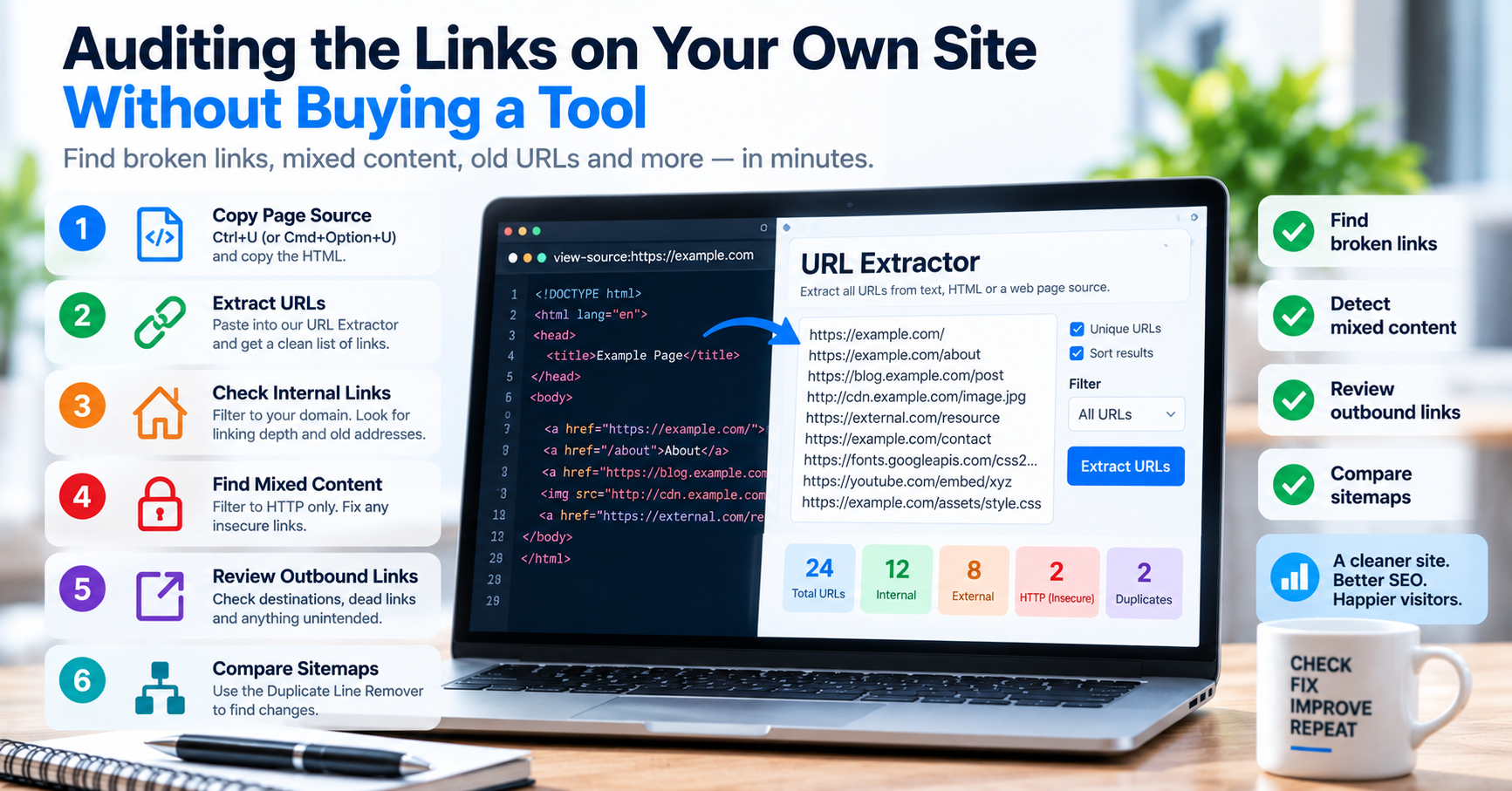
External links pointing to third-party resources are a vital signal of editorial credibility (E-E-A-T). However, third-party domains frequently expire, get acquired by spam networks, or delete referenced pages. If your website links to a dead third-party page that was acquired by a spammy casino or malware network, your domain's trustworthiness in Google's eyes will suffer. Use our free URL Extractor to pull every external hyperlink from your content exports and verify their active HTTP response status.
Managing Link Equity: NoFollow, Sponsored, and UGC Attributes
When conducting a comprehensive link audit, inspecting link attributes is just as critical as checking HTTP status codes. In 2019, Google expanded the traditional rel="nofollow" attribute into three distinct rel values that signal the commercial and editorial nature of external hyperlinks:
rel="sponsored": Mandatory for paid advertisements, affiliate marketing links, and sponsored content collaborations. Failing to mark commercial affiliate links withsponsoredrisks algorithmic manual action penalties from Google's webspam team.rel="ugc": User Generated Content. Recommended for links submitted by visitors in blog comments, user forums, and public profile bios to prevent spammers from exploiting your domain for link schemes.rel="nofollow": General directive instructing crawlers not to associate your domain's PageRank equity with the destination site. Use this for untrusted content or external login pages.
Step 4: Connect Your Orphan Pages
Compare the list of crawled internal URLs against the URLs listed in your official sitemap.xml. Any page present in your sitemap that received zero internal inbound links during the crawl is an orphan page. To resolve this, find two or three authoritative, high-traffic articles on your site that cover related topics and weave in natural, contextual internal links pointing to the orphan article. This passes internal PageRank equity and ensures search crawlers discover and index the content promptly.